
The MoolaMochi email project needed 21 transactional templates, including receipts, billing alerts, and support notices. We used a shared layout and hosted the generated artwork in S3 so coding agents could place it in Paper and Figma through MCP.
Keep the repeated layout in one template
Each email needed its own message and artwork while keeping the same header, button, and footer layout. A shared template reduced the number of spacing and type decisions we had to repeat.
Define the content slots
We defined slots for the header, mascot, body copy, call to action, and footer. New variations could reuse that structure with different text and artwork. Getting those images into the design canvas required another step.
Give the canvas a reachable image URL
The canvas tools in this workflow needed a reachable image URL. A local path such as /assets/image.png pointed to our project files, which the remote canvas could not read.
Organize assets by email type
We organized the S3 assets by email type and gave each one a descriptive filename. The folder structure made it possible to change the email type while keeping the same asset slot:
emails/
├── receipt/
│   ├── mascot-header.webp
│   └── icon-coin.webp
├── billing/
│   ├── mascot-header.webp
│   └── icon-warning.webp
└── support/
    ├── mascot-header.webp
    └── icon-chat.webp
The application can construct a URL from the email type and asset name, using a pattern such as https://<bucket-name>/emails/${emailType}/${assetName}.webp. This example is schematic; the base URL must match the bucket endpoint or asset domain, and the file still needs to be uploaded and reachable.


Update the canvas through MCP
The agent could then update a canvas image fill using the hosted URL. The example below illustrates the style update; the exact tool and node properties depend on the MCP integration.
await tool.update_styles({
  nodeIds: ['mascot-header-node-id'],
  styles: {
    backgroundImage: 'url(https://<bucket-name>/emails/billing/mascot-header.webp)'
  }
});
After each update, we checked a screenshot of the artboard for alignment and clipping. That checks the design canvas; the implemented email still needs testing in the email clients it will support.
Map a reference to the shared layout
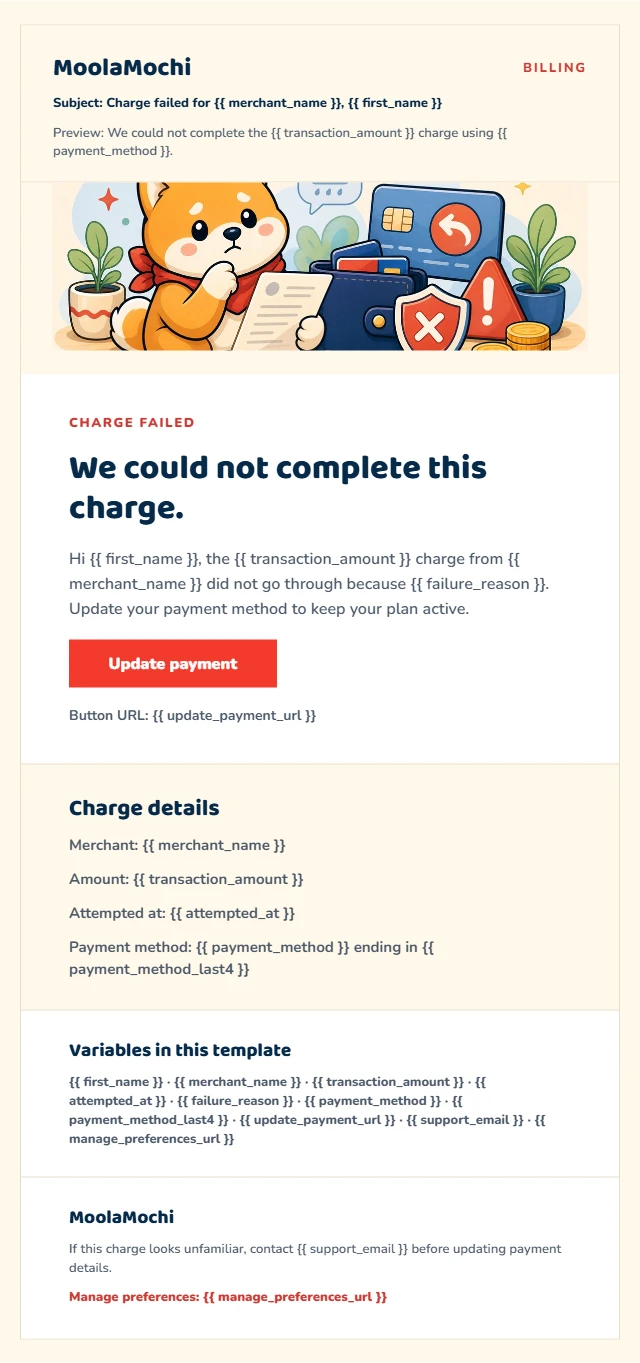
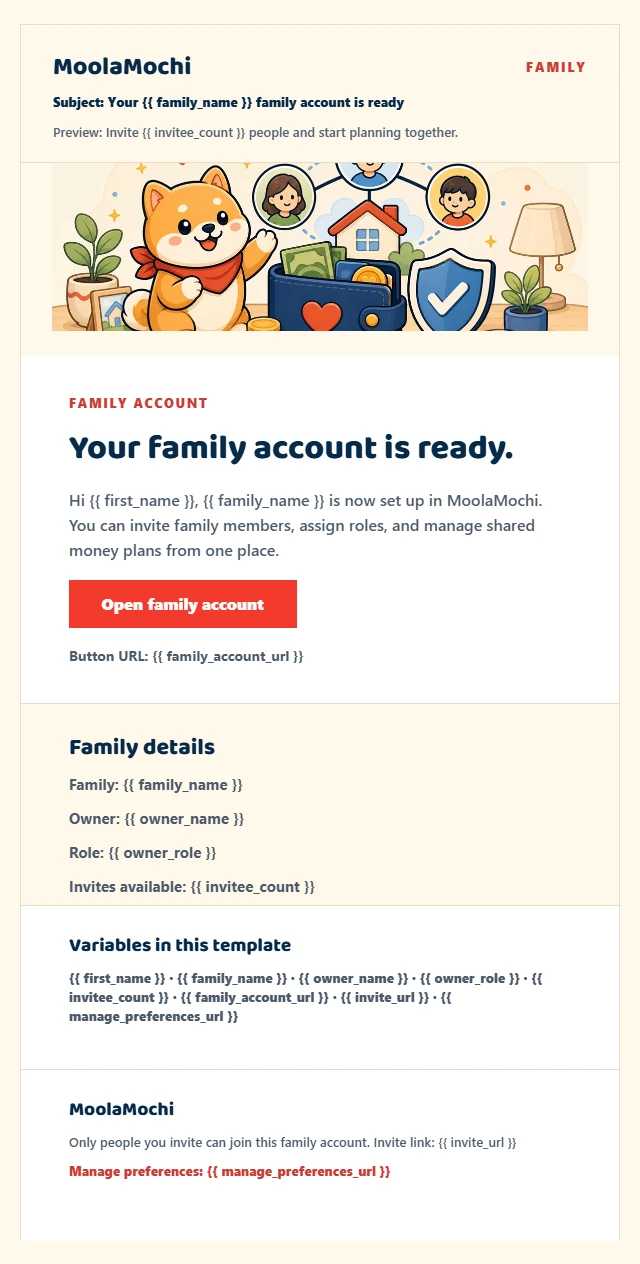
A screenshot helped the agent identify the reference email’s header, message column, button, and footer. Those sections became the named slots in the reusable layout.
The agent used the reference to estimate spacing and map the artwork to the matching slot. For a mascot banner, that meant a file at /emails/{type}/mascot-header.webp. We checked the result against the reference because a screenshot alone does not provide exact font and spacing values.
Checks before reusing the template
- Use descriptive asset names or keep a manifest that maps each slot to its URL.
- Keep slot names consistent across email types.
- Give the agent the asset base URL and check that the intended files are reachable.
- Inspect the artboard after each image update, then test the implemented email in its target clients.