
For MoolaMochi, we needed finance icons with cream backgrounds, navy outlines, and red highlights. Some generated assets had white halos or damaged edges, so we used Codex and image generation to repair the set.
Remove the halo without erasing the icon
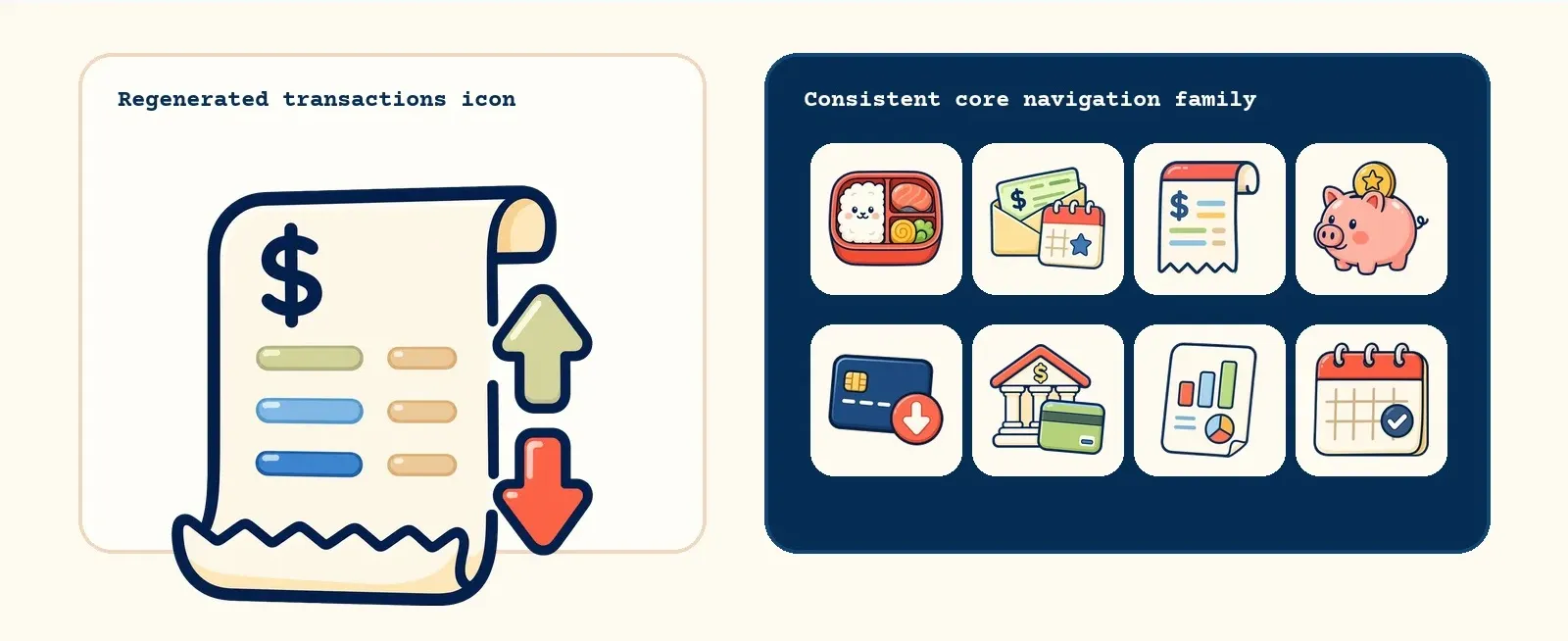
The white borders were easiest to see against a dark background. Removing every pale pixel also risked erasing cream details inside the icons. We wrote a cleanup script that targeted background pixels connected to the outside edge.
Regenerate damaged outlines
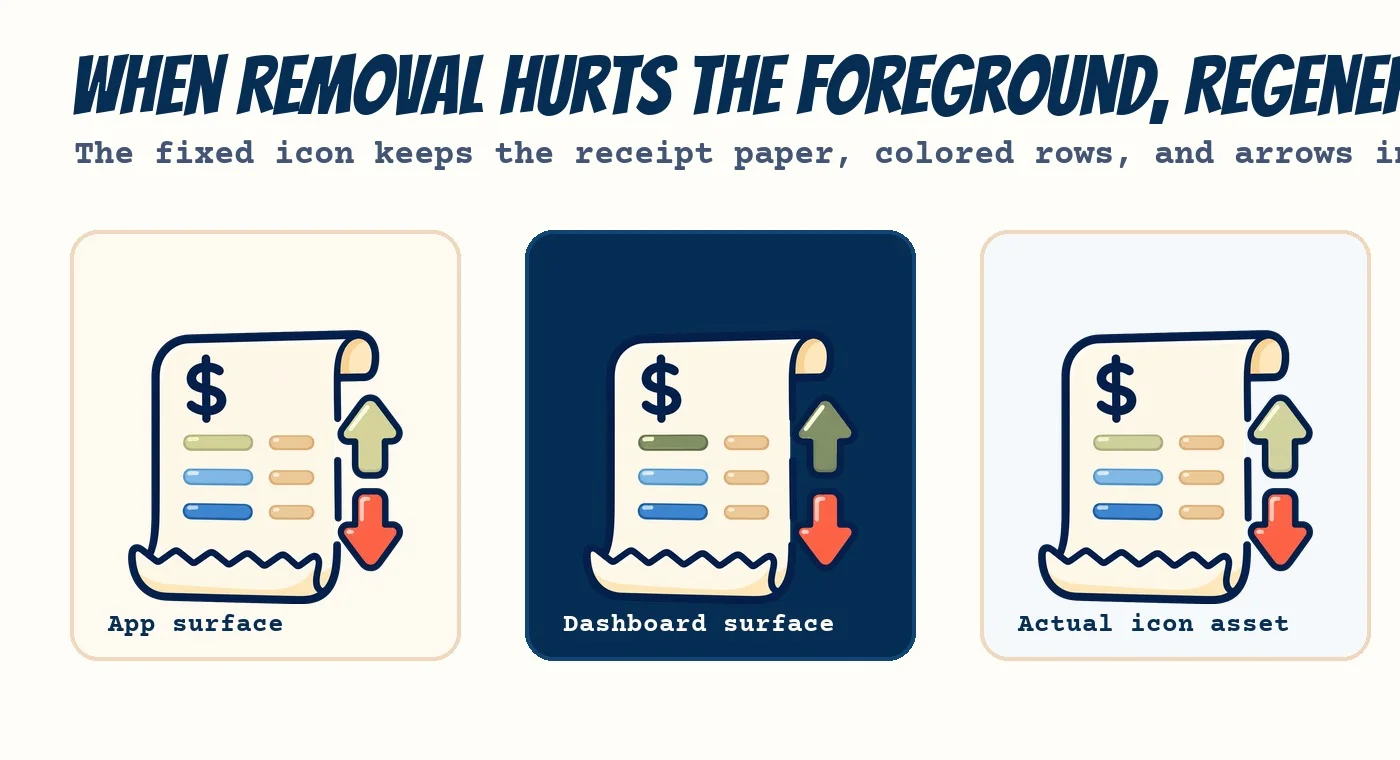
Cleanup damaged the paper edge of a receipt icon, so we regenerated it with thick navy outlines and rounded forms on a flat green background. We then removed the green locally and checked that the outline remained intact.
Compare the set on one contact sheet
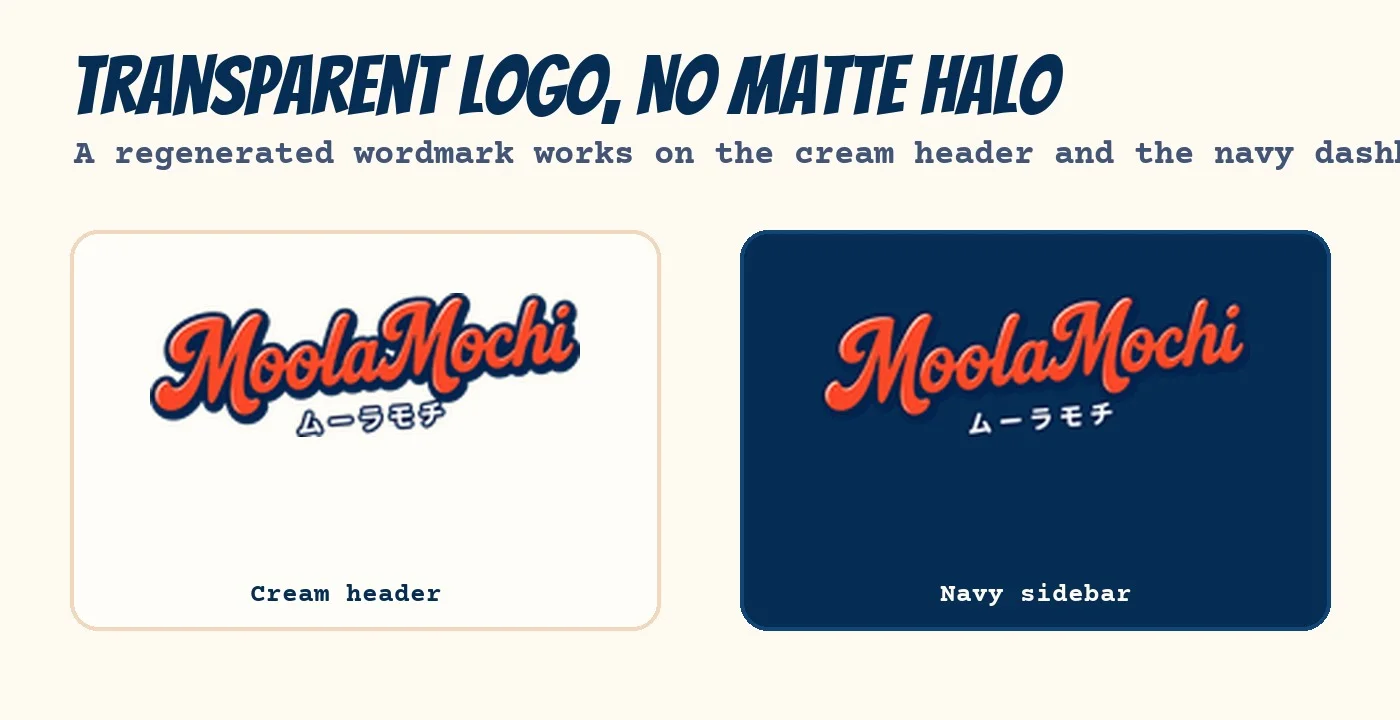
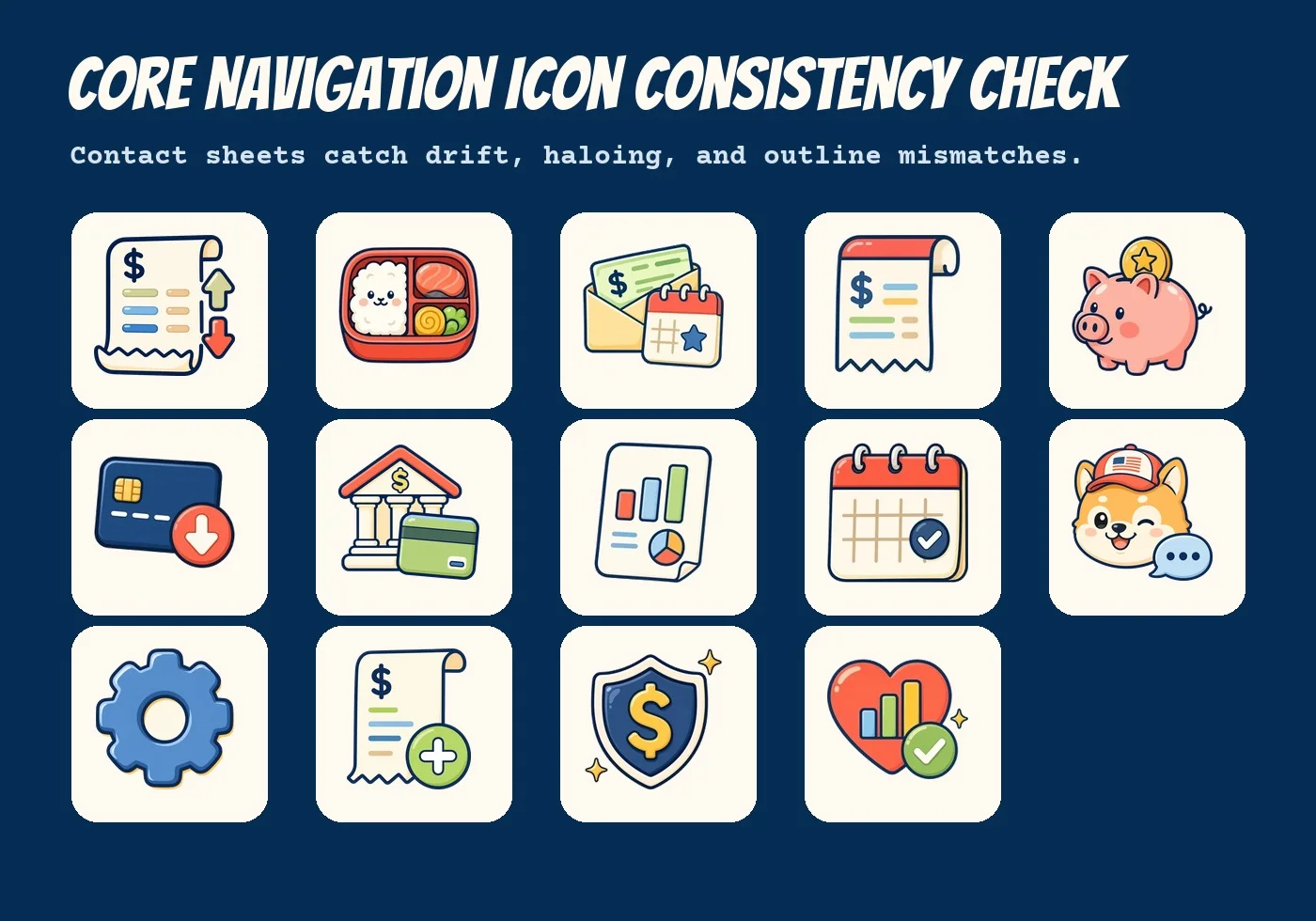
Putting the icons on one dark contact sheet let us compare their outline weights and spot transparency errors. We also checked the logo on the cream surface where it would appear in the app.
Checks before exporting the icons
- Inventory all active icon assets in your project directory first.
- Clean up transparency using edge-connected masking to protect internal colors.
- Use flat chroma-key green backgrounds for new generations to simplify local masking.
- Place all assets on a unified dark contact sheet to audit outline weights.
- Save files in optimized WebP formats and check the real app build using screenshots.